How to Rename Forms
Overview
When you create a form, MakeForm automatically generates the form’s title based on your conversation with the AI chatbot. You can rename forms at any time for better organization without affecting what your respondents see.
How to Rename Your Form
From your dashboard:
- Navigate to your MakeForm dashboard
- Find the form you want to rename
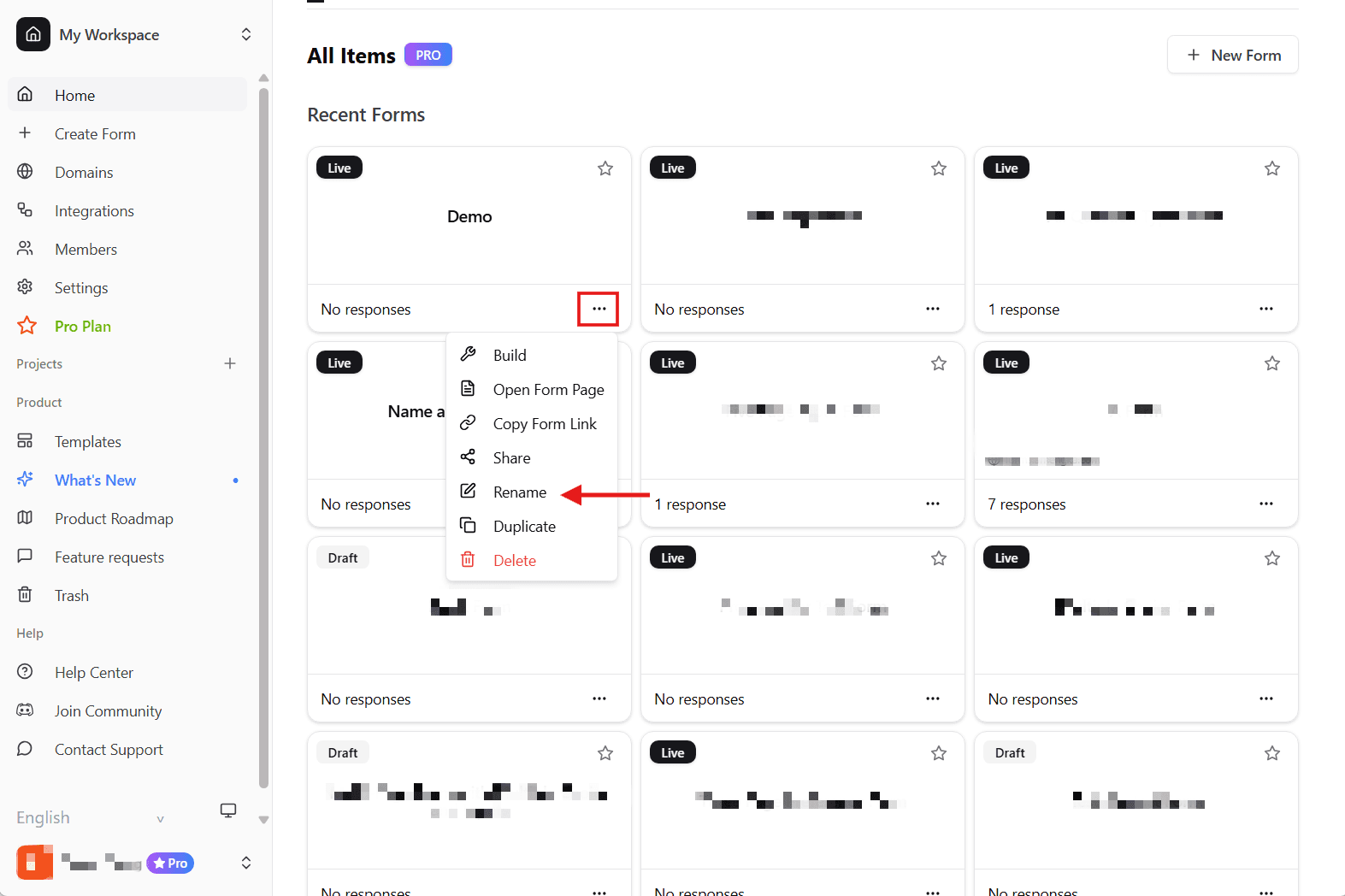
- Click the three-dot menu (⋯) in the form card
- Select Rename from the dropdown menu
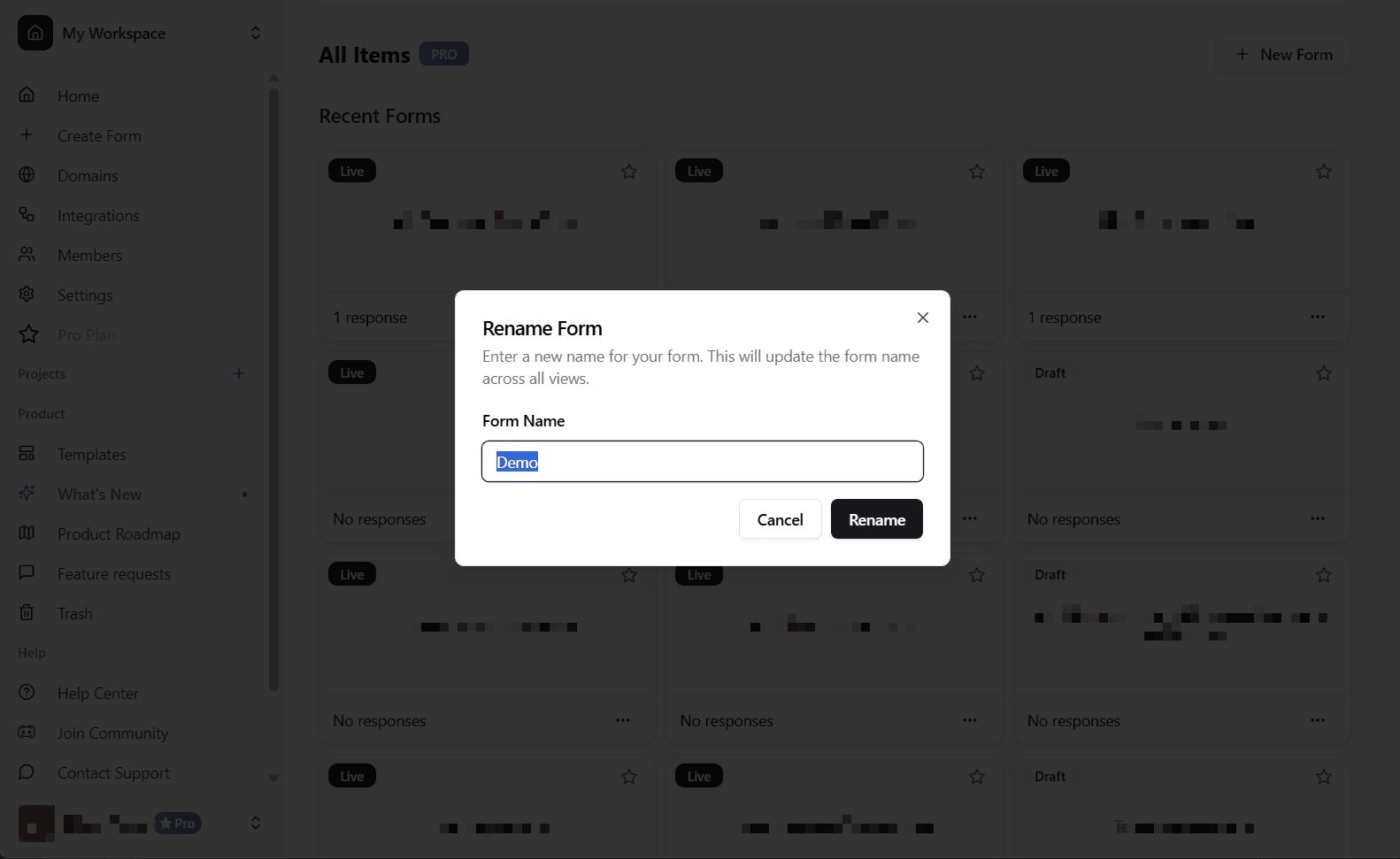
- Enter your new form name and click Rename
After clicking Rename, a modal will appear where you can enter the new form name:
From your form’s details page:
- Open your form by clicking on it from the dashboard
- On the form details page, click the three-dot menu (⋯) next to the form name at the top
- Select Rename from the dropdown menu
- Enter your new form name and click Rename
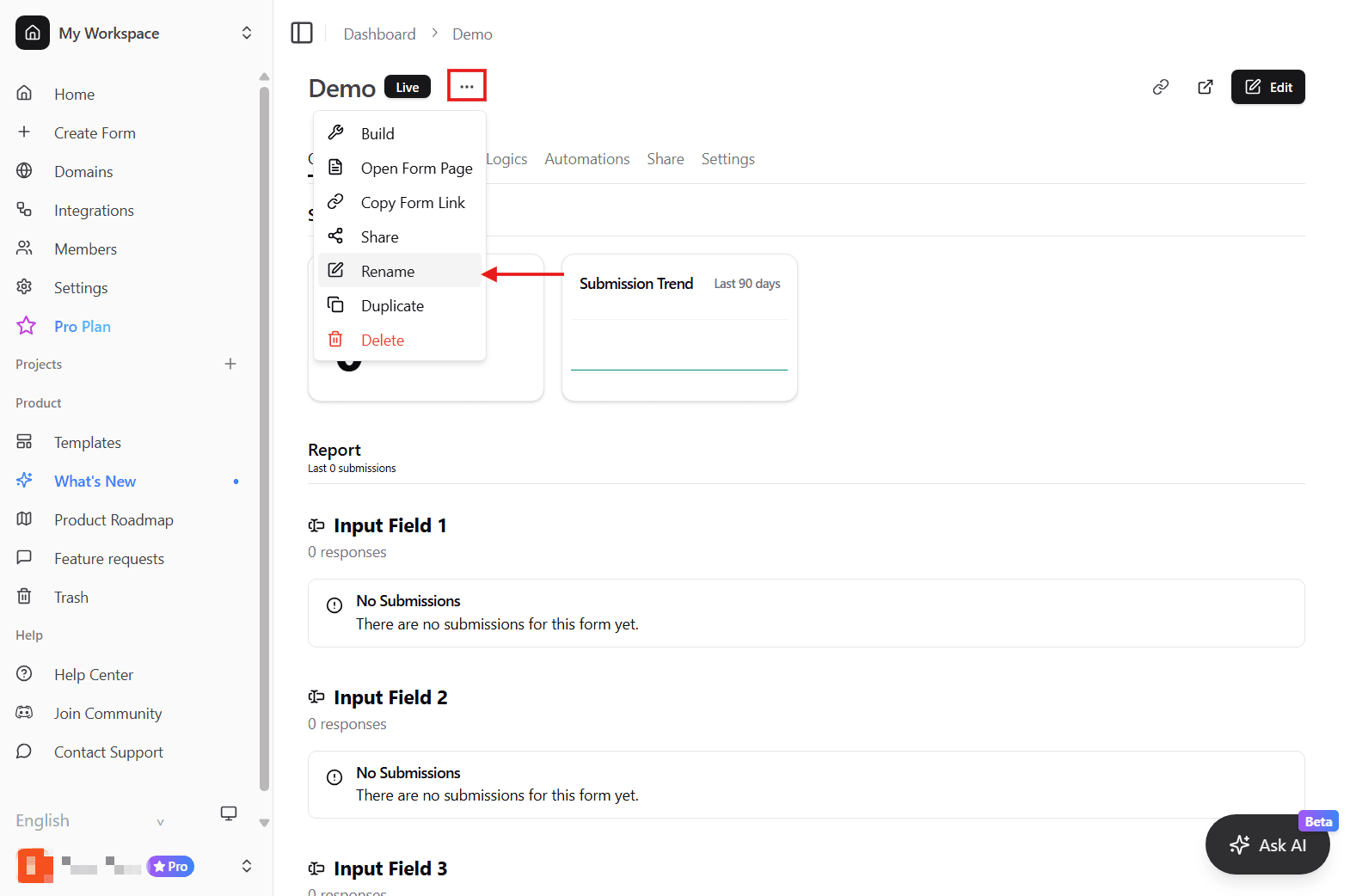
This will update the form name that appears in your dashboard and throughout the MakeForm editor.
Important: Renaming your form only changes its internal name for your organization. To change what your respondents see when they open your form, you’ll need to customize the share title (see below).
Understanding Form Names vs. Share Titles
MakeForm uses two different naming systems:
Form Name (Internal)
- What you see in your dashboard and editor
- Used for organizing and identifying your forms
- Not visible to respondents
- Can be changed anytime using the Rename option
Share Title (Public)
- What appears in the browser tab when respondents view your form
- Displayed in social media previews when you share your form link
- Shown in search engine results
- Can be customized from the Share page (Pro feature)
To customize your share title, image, and favicon for link previews, see Link Preview.