Pre-Populate Forms
Pre-populate forms by passing known values into hidden fields through the form URL. This lets you carry campaign, CRM, customer, or referral data into the submission without asking respondents to type it.
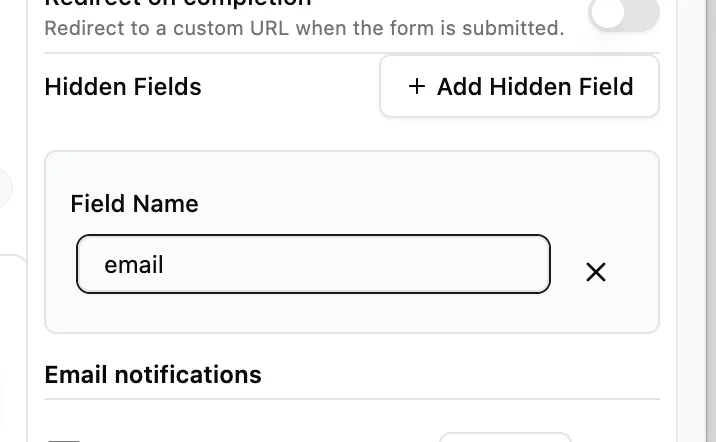
Pre-population is best for values you already know before the respondent opens the form, such as email, utm_source, customer_id, referral_code, or plan.
How pre-population works
Create a hidden field, save the form, then pass a matching query parameter in the form URL. Makeform reads that parameter and saves it with the response.
Example:
https://makeform.ai/f/customer-intake?email=maya@example.com&plan=proIn this example:
emailfills a hidden field namedemail.planfills a hidden field namedplan.
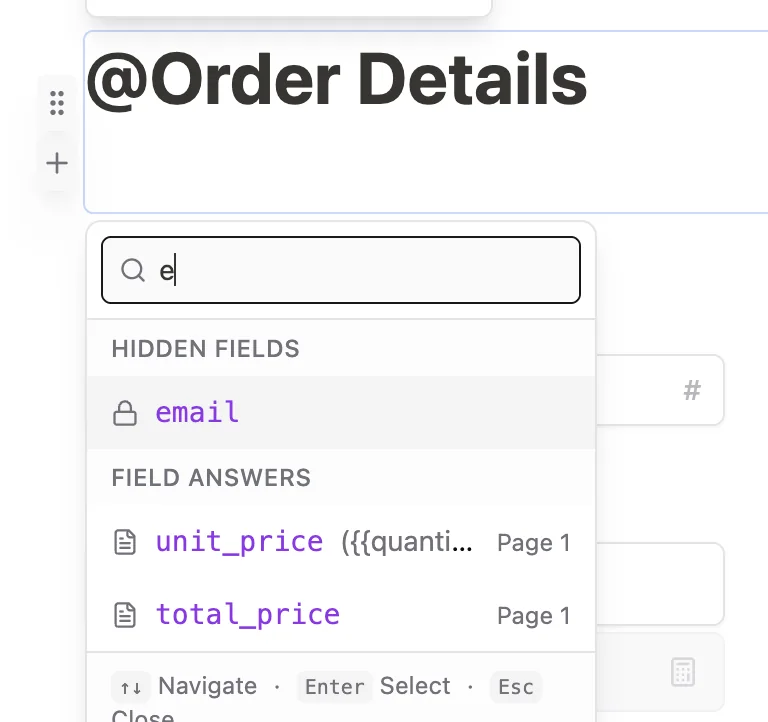
You can also use that hidden value inside form copy. Click or type @ and choose the parameter from the variable menu.
Create a hidden parameter
- Open your form in the builder.
- Go to the form settings.
- Add a Hidden Field.
- Give it a stable field name, such as
email,utm_source,customer_id,referral_code,plan, orcompany. - Save or update the form after adding the hidden field.
- Publish or preview the form.
- Add a matching query parameter to the form URL.
Build a pre-populated link
Start with the form URL, then add a question mark and key-value pairs:
?email=maya@example.com&plan=pro&utm_source=newsletterUse & between each value.
If a value contains spaces or special characters, encode it:
company=Acme%20StudioUse the parameter in form copy
Hidden parameters are not shown as editable fields, but you can reference them in questions, descriptions, text blocks, or ending pages.
For example, if your hidden field is named email, you can insert it into copy as:
We will send the receipt to {{email}}.Use the @ menu in the builder to insert the parameter instead of typing the variable manually.
Respondent experience
The respondent does not see or edit the hidden field. Makeform stores the parameter with the response, and any visible copy that references the parameter updates when the form loads.
Common use cases
| Use case | Values to pass |
|---|---|
| Newsletter campaign | utm_source, campaign, segment |
| CRM lead routing | company, owner, lead_id |
| Customer support | account_id, issue_type, customer_tier |
| Event registration | ticket_type, referrer, discount_code |
Testing checklist
- Open the link in a private browser window.
- Confirm hidden tracking fields appear in the submission data.
- Confirm any copy that references the parameter renders correctly.
- Test values with spaces and special characters.
- Submit a test response and review the saved values.
Troubleshooting
A hidden field does not receive a value
Check that the query parameter name matches the field name exactly.
Spaces appear incorrectly
Encode spaces as %20 or use a URL builder before sending the link.
The value is visible but should be hidden
Move that value to a hidden field so respondents cannot edit it.
A variable does not render in copy
Confirm the hidden field exists before you insert it, then use the @ menu to select the parameter again.