Calculation Fields
Use calculation fields to compute totals, scores, estimates, and other dynamic values from answers in the same form.
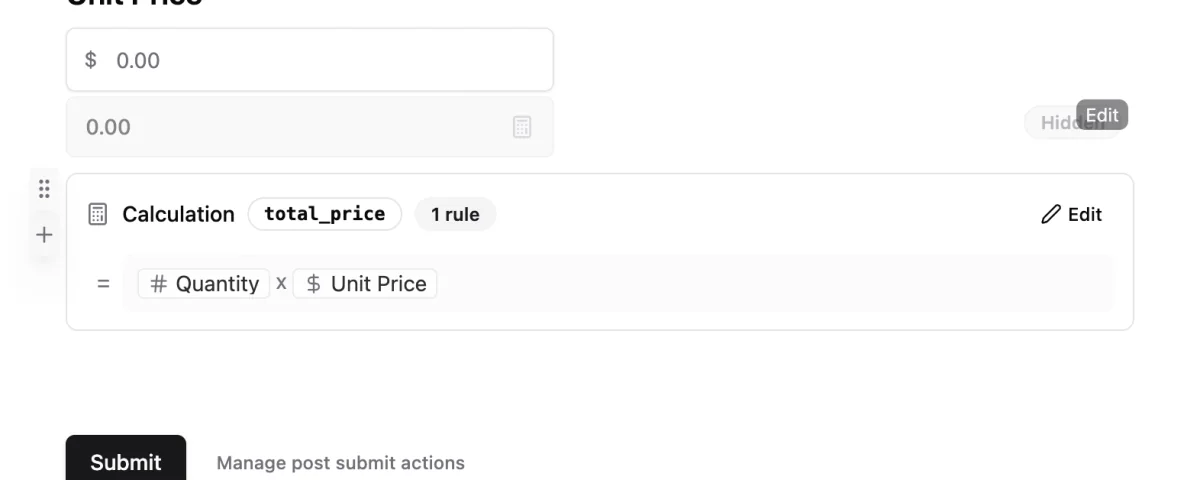
Calculation fields are best when the value should be saved with the submission, shown to the respondent, or reused by another field such as a payment amount.
Common use cases
- Quote requests that calculate price from quantity, hours, or package choices
- Lead scoring forms that assign points to answers
- Event registration forms that total tickets, add-ons, or fees
- Assessments that calculate a score before showing an ending page
- Payment forms that use a calculated amount
Before you start
Give the fields you want to calculate from clear names. For example, use field names like hours, rate, quantity, plan, or score.
If your formula references a field, that field should appear earlier in the form flow so Makeform can calculate from a value that already exists.
Create a calculation with AI
- Open your form in the builder.
- Add the input fields that provide the values for your calculation, such as Number Input, Currency Input, or choice fields with point values.
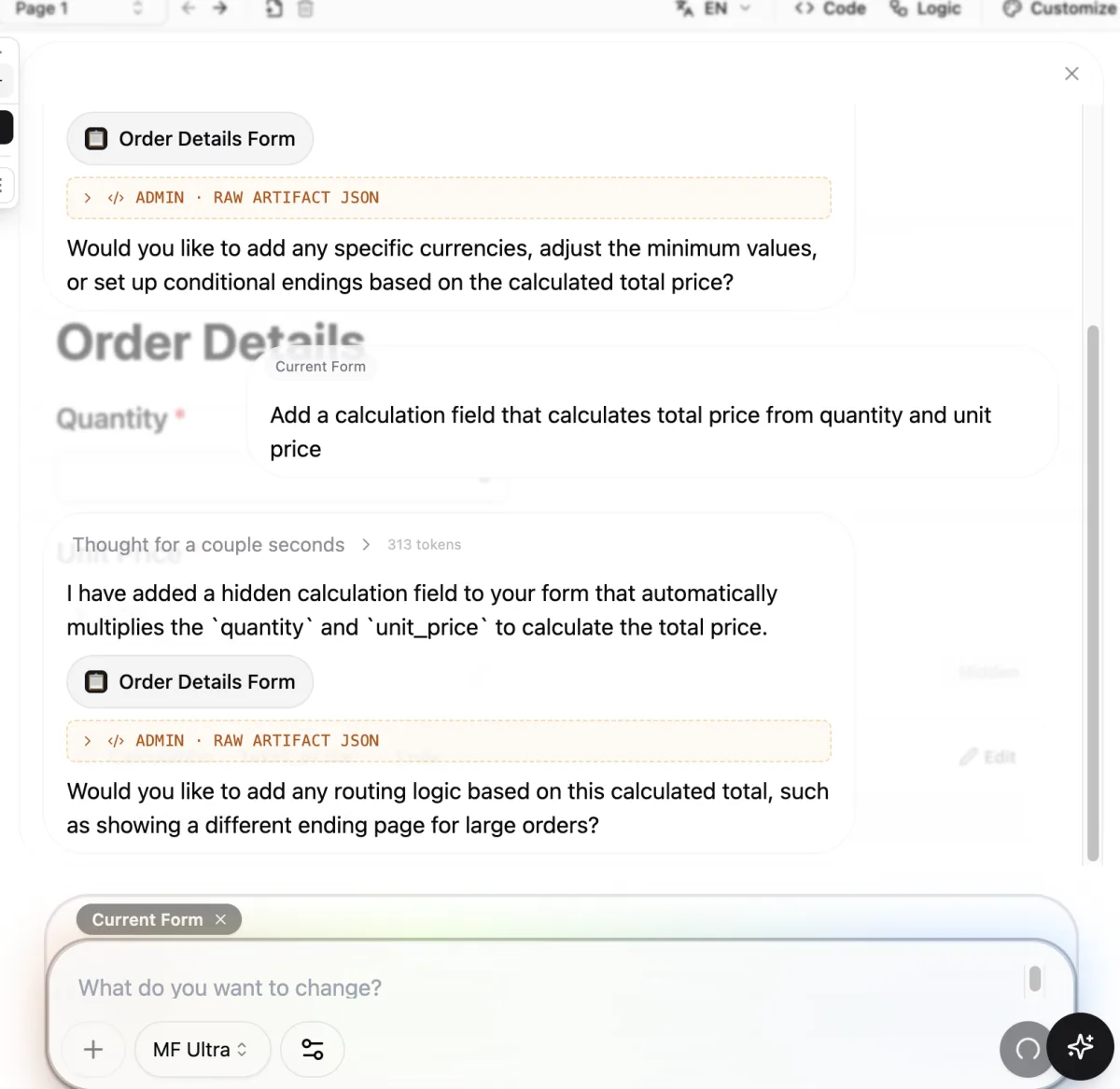
- Ask Makeform AI to add the calculation. For example:
Add a calculation field that calculates total price from quantity and unit price. - Review the calculation field that Makeform creates.
- Preview the form and test the formula with realistic answers.
Makeform AI can create a hidden calculation field when the value is mainly used behind the scenes. Hidden calculations are still saved with the response and can still be referenced by other fields.
Edit the calculation rules
Open the calculation field and review the rule Makeform created. A simple total can be built from rule blocks, such as multiplying Quantity by Unit Price.
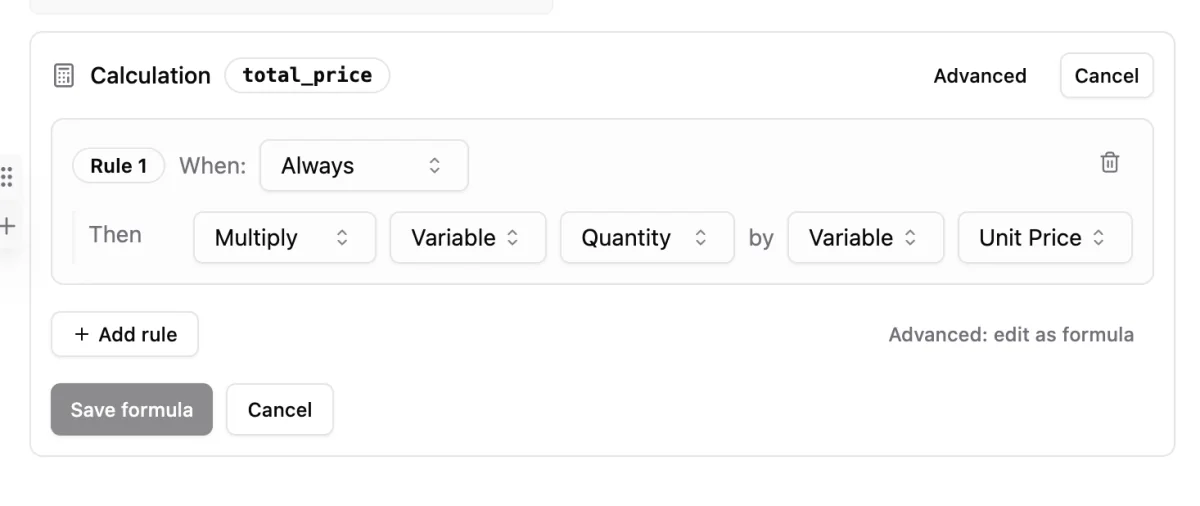
Use rules when the calculation is simple and easier to read as steps. Use advanced formula mode when you want to type the expression directly.
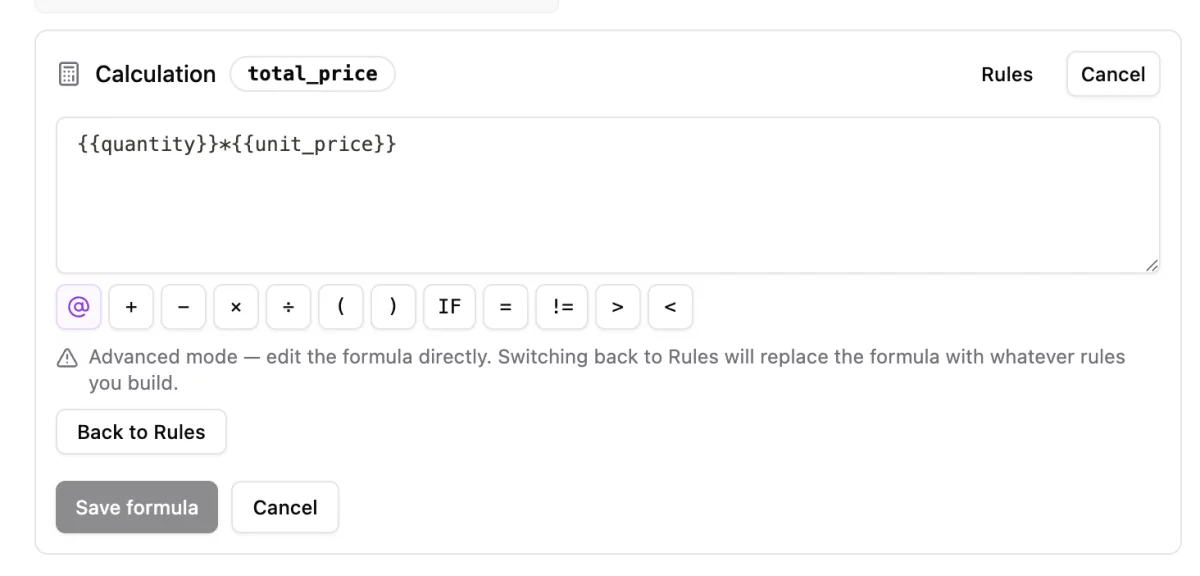
In advanced formula mode, reference fields with {{field_name}}.
Formula examples
| Goal | Example formula |
|---|---|
| Multiply hours by a rate | {{hours}} * {{rate}} |
| Add two values | {{setup_fee}} + {{monthly_fee}} |
| Apply a percentage | {{subtotal}} * 0.1 |
| Score several answers | {{score_a}} + {{score_b}} + {{score_c}} |
| Add tax to a total | {{subtotal}} + ({{subtotal}} * {{tax_rate}}) |
Show the calculated value
You can show the result to respondents when the calculation helps them understand the next step. This is useful for quotes, estimates, order totals, or assessment scores.
If the calculation field itself is hidden, add a text block that references the calculation result. For example:
Total: ${{total_price}}You can also ask Makeform AI to do this for you. For example: Show the total price on the same page below the unit price field.
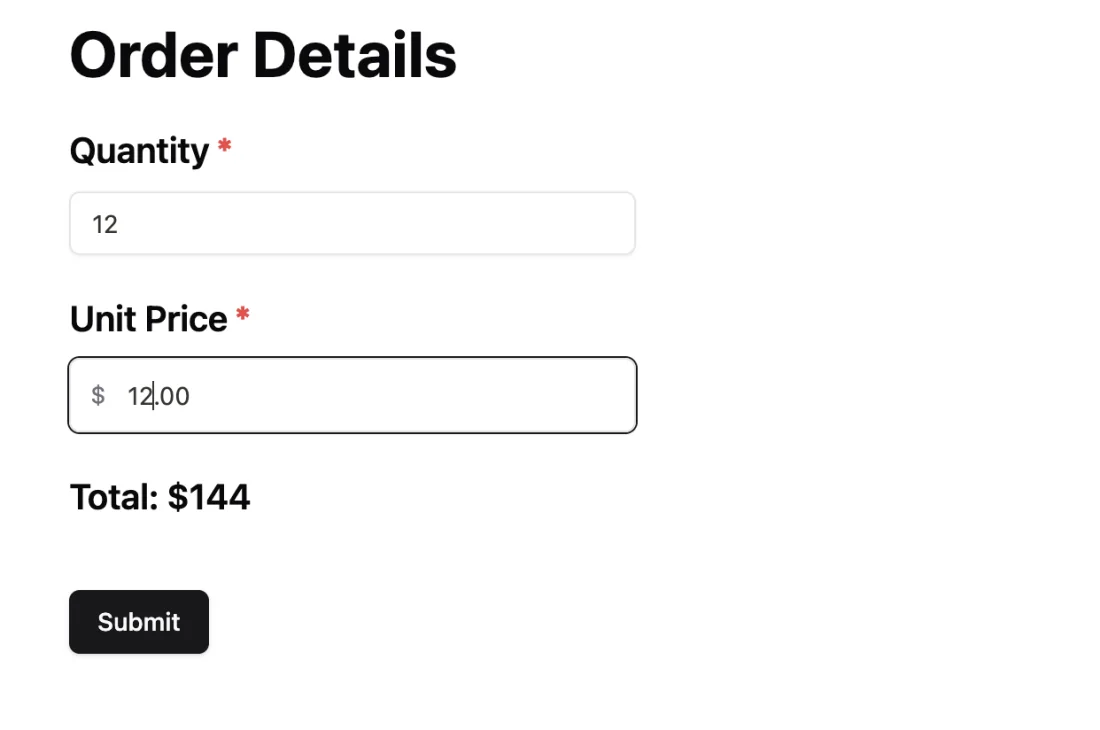
If the calculation is only for your internal workflow, keep it hidden and review the value in the submission data.
Use calculation fields with payments
When a payment field uses a calculated amount, create the calculation first, test it, then select that calculation as the payment amount source.
Good examples:
{{ticket_count}} * {{ticket_price}}{{package_price}} + {{add_on_total}}{{base_fee}} + {{rush_fee}}
Avoid using calculations for values that should never change without server-side verification, such as regulated pricing or legally binding quotes.
Testing checklist
- Test with empty fields.
- Test with small and large numbers.
- Test decimals if your form accepts currency or percentage values.
- Confirm the result format is readable.
- Submit a test response and verify the calculated value appears in submissions.
- If the calculation powers a payment amount, test the payment flow before sharing the form.
Troubleshooting
The result is blank
Check that every referenced field has a value. If a field is empty, the formula may not have enough data to calculate.
The formula does not recognize a field
Confirm that the formula uses the field name, not just the question label. Field names are easier to reference when they are short and consistent.
The result looks wrong
Check parentheses and operator order. For example, subtotal + fee * tax is different from (subtotal + fee) * tax.
The payment amount is wrong
Test the calculation independently first. Once the calculation result is correct, connect it to the payment field again.