Embed Your Form
You can embed a Makeform form on any webpage. Add it directly inside the page, open it as a popup or slider, or let it fill a full page.
Embedding forms is available for free to all Makeform users. Some branding options require Makeform Pro.
How embedding works
Go to the Share tab of your published form and choose Embed.
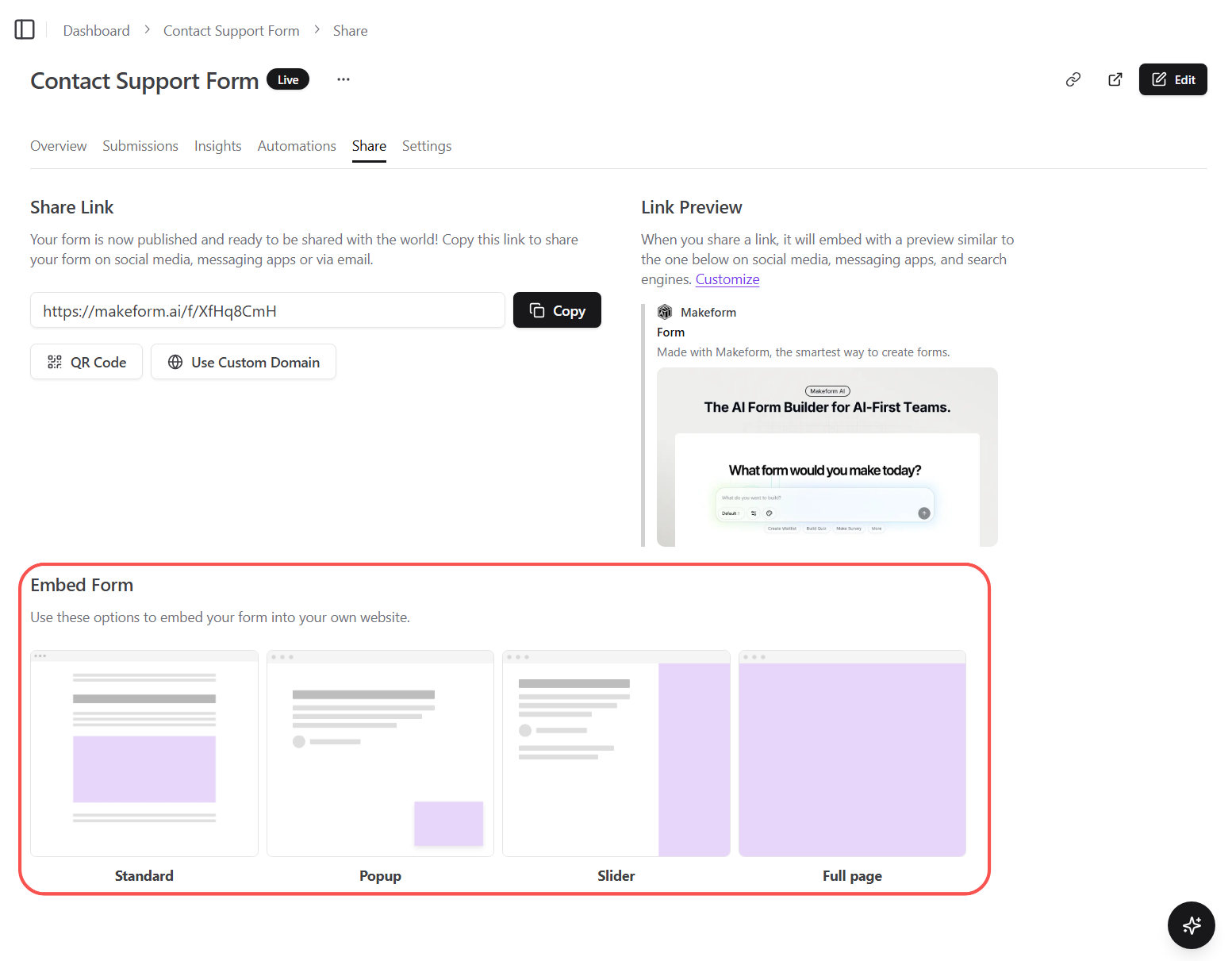
A preview window opens with the available embed types.
Select an embed type, adjust the options, and use the preview to check how it will look on a webpage.
Use the copy option that matches your site:
- Get the code — Copy the full embed code when your website lets you paste embed code.
- Copy embed link — Copy only the embed URL when your site builder or no-code tool asks for a form link.
Choose an embed type
There are four embed types:
| Type | Best for |
|---|---|
| Standard | A form inside normal page content |
| Popup | A form that opens over your page |
| Slider | A form that slides in from the side |
| Full page | A form that fills a page or section |
Builder edits change the draft only. Publish the form again, and existing embeds will then show the updated live content without new embed code. If you change embed options such as width, background, or opening behavior, copy the updated code from the Share tab again.
Standard embed
The standard embed places the form directly inside your webpage content.
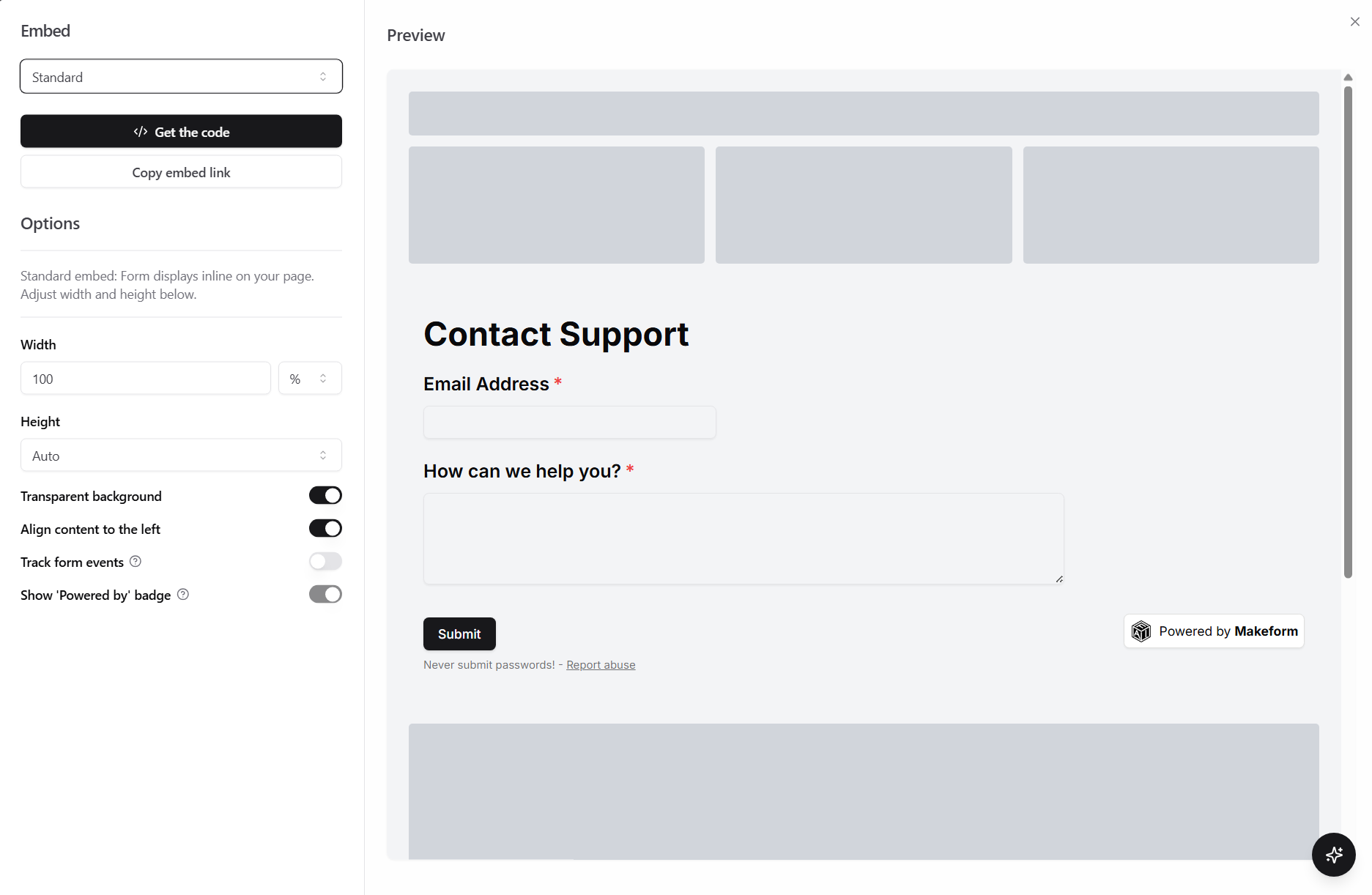
Select Standard, adjust the options, copy the code, and paste it where the form should appear on your page.
Options
- Width — Adjust the form width for your page layout.
- Height — Set a fixed height, or enable dynamic height so the embed automatically fits the form content.
- Transparent background — Remove the default form background so the form blends into your page.
- Align content to the left — Align embedded form content to the left instead of centering it.
- Track form events — Send form load and submission events to your website. See Handle Form Events.
- Show ‘Powered by’ badge — Show or hide the
Powered by Makeformbadge where your plan allows it. See Remove Makeform Branding.
For normal page content, use the Standard embed code from the Share tab. Use Full page only when the form should fill the page or a dedicated section.
Popup embed
Popup embeds open the form over your page. Center popups focus attention on the form, while bottom-right popups keep more of the page visible.
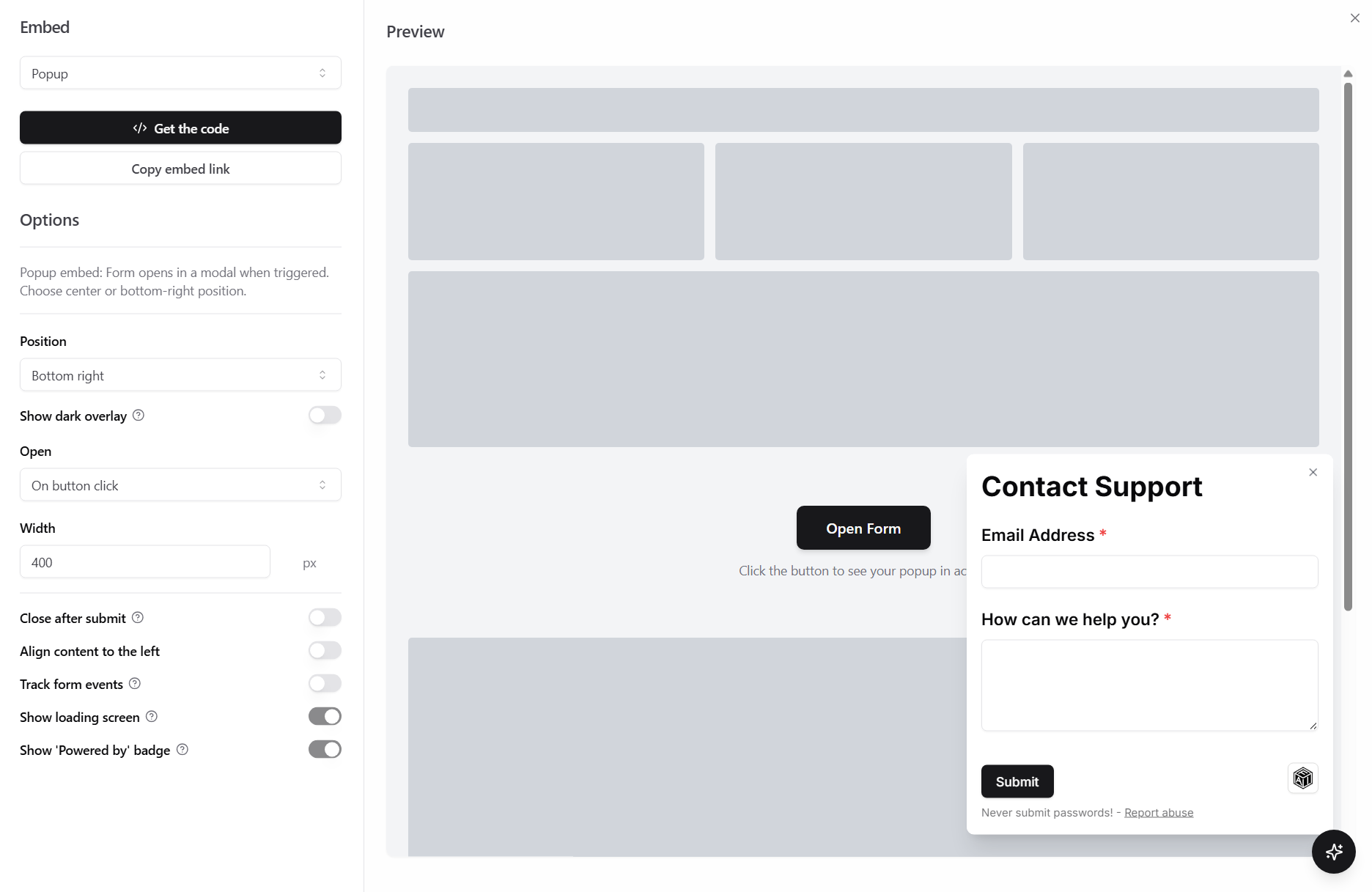
Select Popup, choose how the popup should open, copy the code, and paste it into your website.
Options
- Position — Open the popup in the center of the page or in the bottom-right corner.
- Show dark overlay — Dim the page behind a bottom-right popup. Center popups always use an overlay.
- Open (form trigger) — Choose whether the popup opens from a button click, on page load, after a delay, on exit intent, or after scrolling.
- Width — Adjust the popup width on desktop.
- Close after submit — Close the popup automatically after a successful submission.
- Align content to the left — Align form content to the left instead of centering it.
- Track form events — Send popup open, close, load, and submission events to your website. See Handle Form Events.
- Show loading screen — Show or hide the loading screen while the popup loads. This is the same setting as Show Loading Screen in Form Settings.
- Show ‘Powered by’ badge — Show or hide the
Powered by Makeformbadge where your plan allows it. See Remove Makeform Branding.
For automatic opening, custom behavior, or developer setup, see Developer Resources.
Slider embed
Slider embeds open the form as a side panel. They open from the right by default, but can also open from the left.
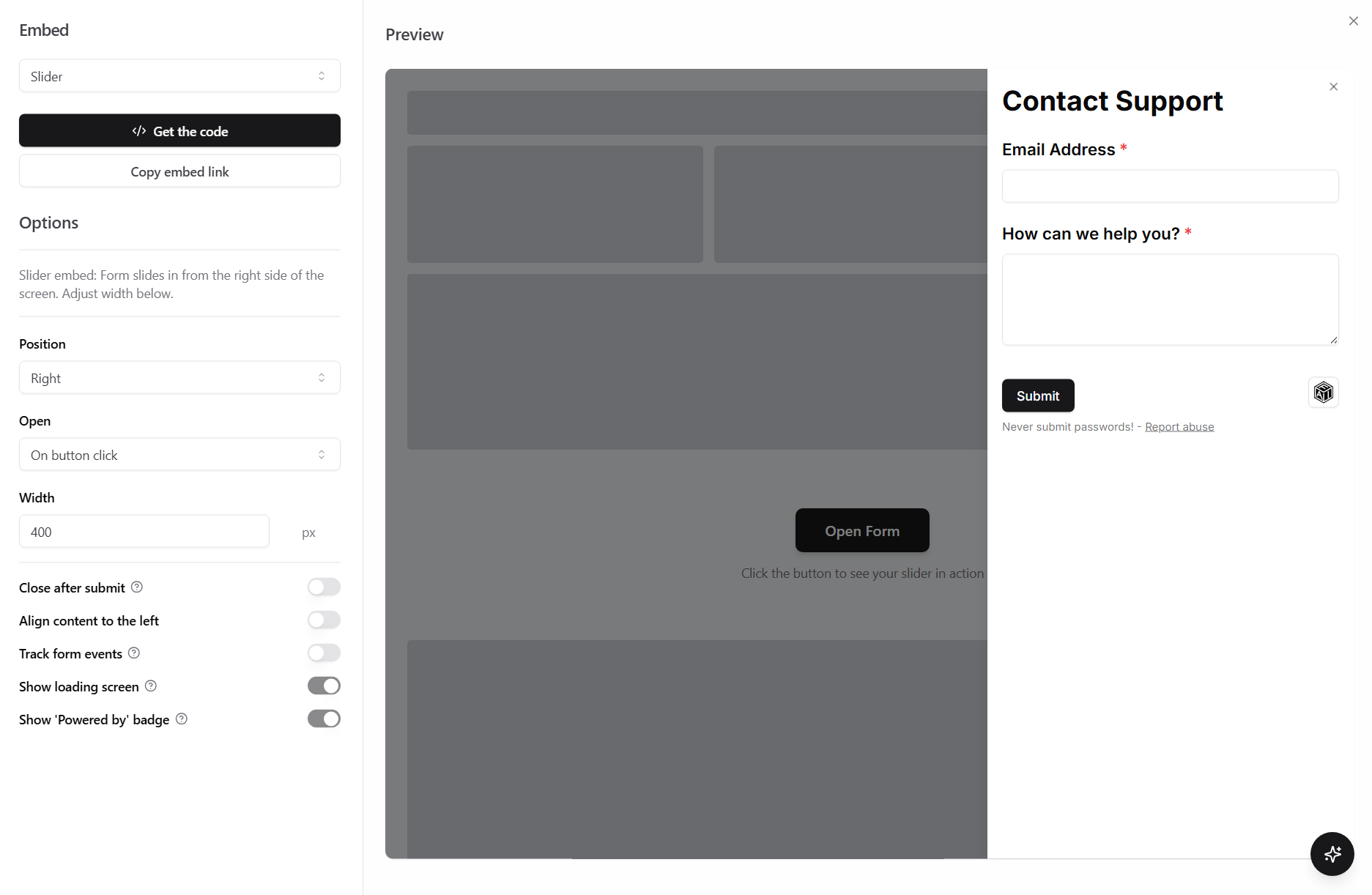
Select Slider, choose the side it should open from, copy the code, and paste it into your website.
Options
- Position — Open the slider from the right or left side of the page.
- Open (form trigger) — Choose whether the slider opens from a button click, on page load, after a delay, on exit intent, or after scrolling.
- Width — Adjust the slider width on desktop.
- Close after submit — Close the slider automatically after a successful submission.
- Align content to the left — Align form content to the left instead of centering it.
- Track form events — Send slider open, close, load, and submission events to your website. See Handle Form Events.
- Show loading screen — Show or hide the loading screen while the slider loads. This is the same setting as Show Loading Screen in Form Settings.
- Show ‘Powered by’ badge — Show or hide the
Powered by Makeformbadge where your plan allows it. See Remove Makeform Branding.
For automatic opening, custom behavior, or developer setup, see Developer Resources.
Full page embed
Use a full page embed when the form should be the main content of a page or fill a dedicated section.
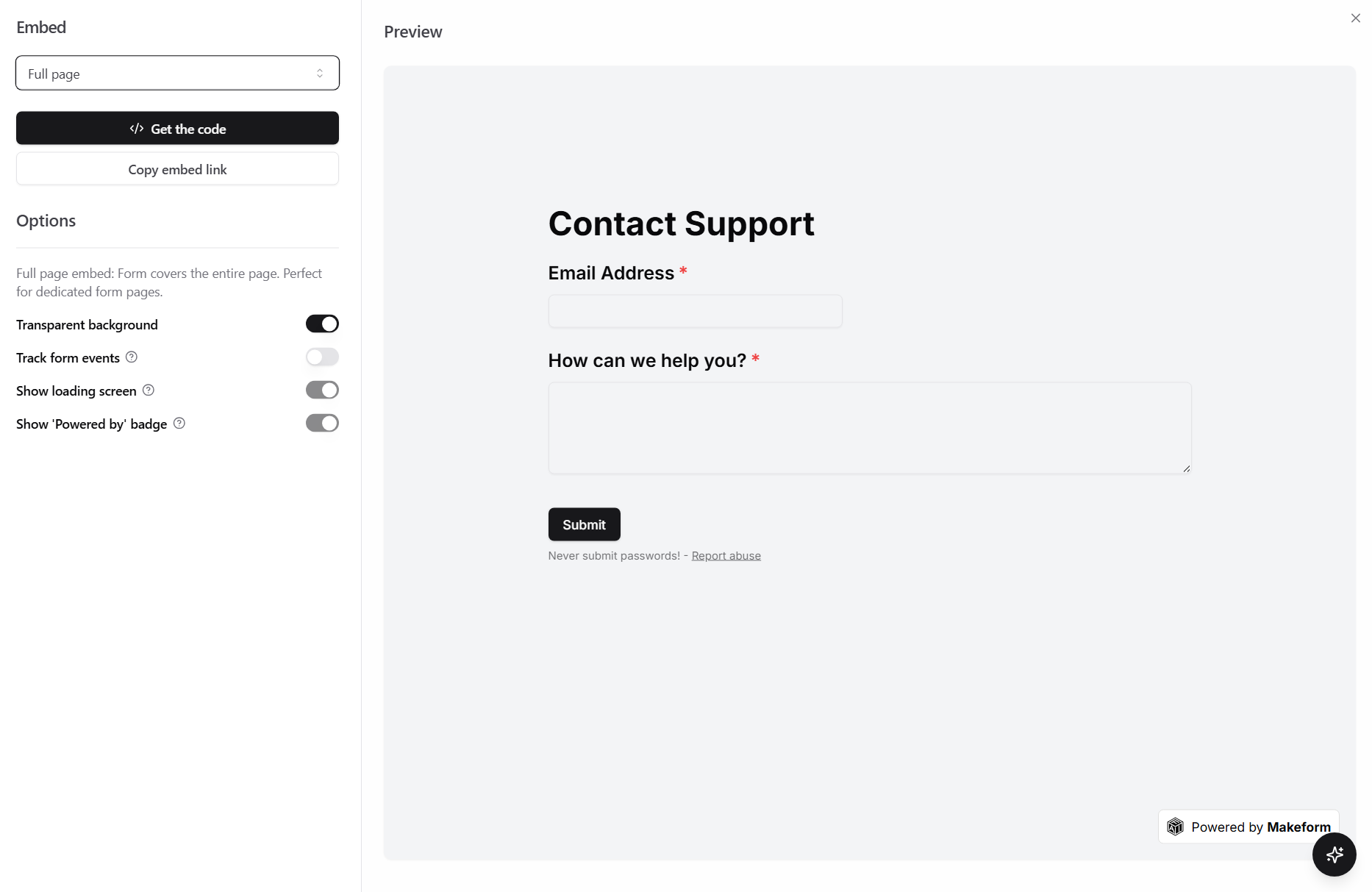
Select Full page, copy the code, and paste it into the page or container where the form should fill the available space.
Options
- Transparent background — Remove the default form background so the form blends into the page.
- Track form events — Send form load and submission events to your website. See Handle Form Events.
- Show loading screen — Show or hide the loading screen while the full page form loads. This is the same setting as Show Loading Screen in Form Settings.
- Show ‘Powered by’ badge — Show or hide the
Powered by Makeformbadge where your plan allows it. See Remove Makeform Branding.
Hidden fields and locale
Pass hidden fields by adding query parameters to the embed URL:
YOUR_EMBED_URL?user_id=123&utm_source=docsChoose a locale in the Share tab if your embedded form should use a specific language. See Supported Languages for language options.
See Hidden Fields for setup and URL parameters, or Developer Resources for developer setup.
Shared form settings
Some options in the embed panel are saved on the form itself and stay in sync with Form Settings:
| Setting | Description |
|---|---|
| Show loading screen | Controls the form loading screen for popup, slider, and full page embeds. This is the same option as Show Loading Screen in Form Settings. |
| Custom loading text | Shows custom loading copy while the form loads. |
| Show ‘Powered by’ badge | Controls the Powered by Makeform badge. |
| Remove Makeform branding | Removes Makeform branding where your plan allows it. |
See also
- Hidden Fields — Pass user IDs, plans, emails, and other context into embedded forms
- Supported Languages — Choose the language shown in your form
- Remove Makeform Branding — Manage the powered-by badge and Makeform branding
- Handle Form Events — Listen for form load, submit, open, and close events
- Developer Resources — Use the JavaScript API, auto-open settings, and dynamic hidden fields